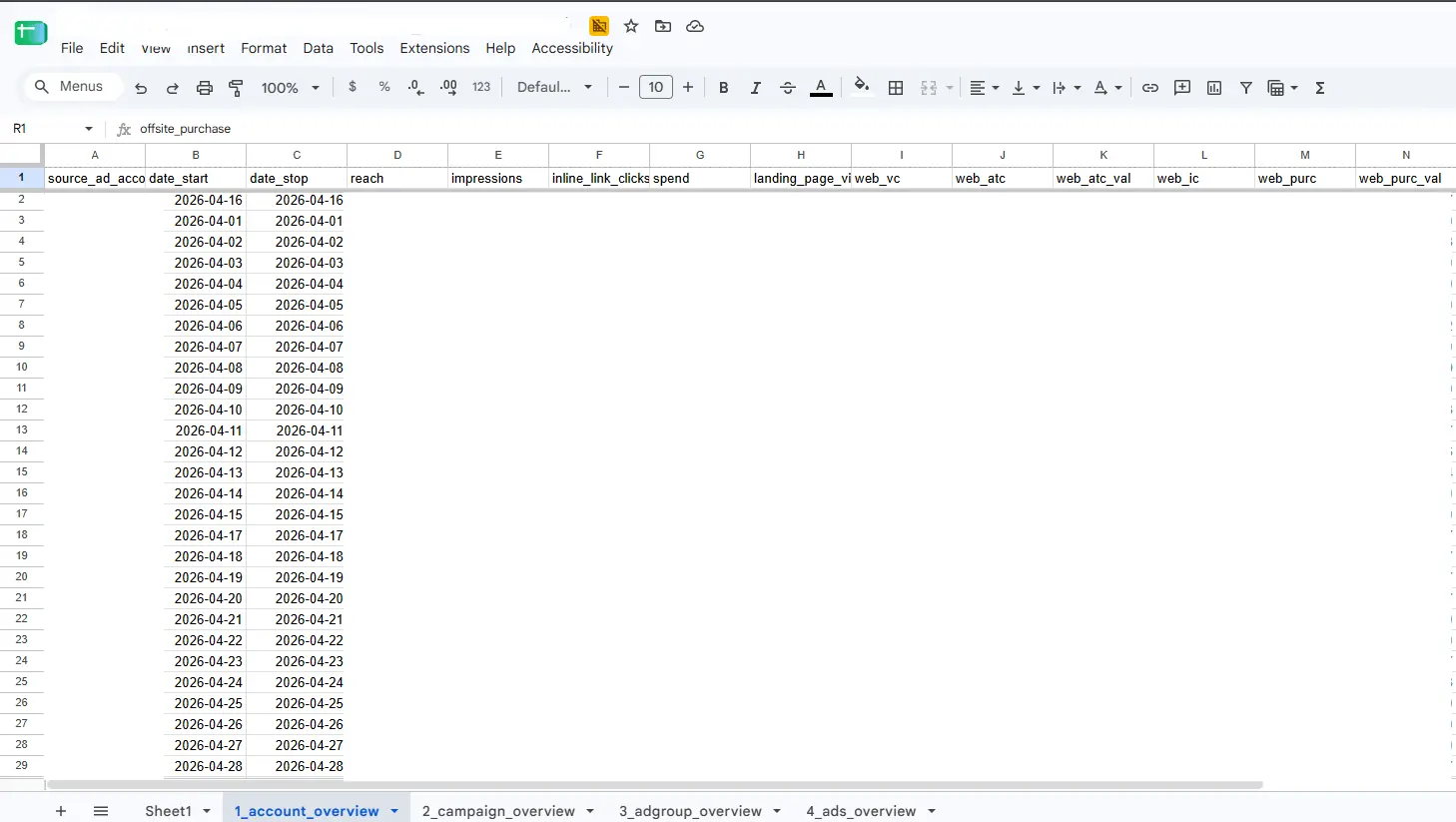
01 - Account
Daily account totals provide an overview of performance.
Meta Ads Auto Reporting
Meta AdsScheduled data collection brings Meta Ads performance into Google Sheets at Account, Campaign, Ad Set, and Ad levels. Central monitoring records run status and retries failed pulls.
The Problem
Managing Meta Ads across multiple clients meant repeatedly pulling the same performance data from Ads Manager - account by account, campaign by campaign. As the number of accounts grew, this became more than repetitive work.
Manual exports took time, made historical data harder to maintain consistently, and created another daily process that needed to be checked. I wanted the data to already be there when the team started working.
I automated the recurring data collection so the team could start with the reporting dataset.
The Solution
I built a multi-account reporting system using the Meta Ads API, Google Apps Script, and Google Sheets. A centralized master sheet acts as the control layer. It manages the client accounts included in the automation, determines which accounts should be processed, and tracks the status of every reporting run.
Every day at 7:00 AM (UTC+7), the system starts pulling Meta Ads performance data for each active client. The data is then stored in each client's dedicated spreadsheet across four levels of reporting:
But pulling the data was only part of the problem. The system also needed to know what happened when something went wrong.
Centralized Monitoring
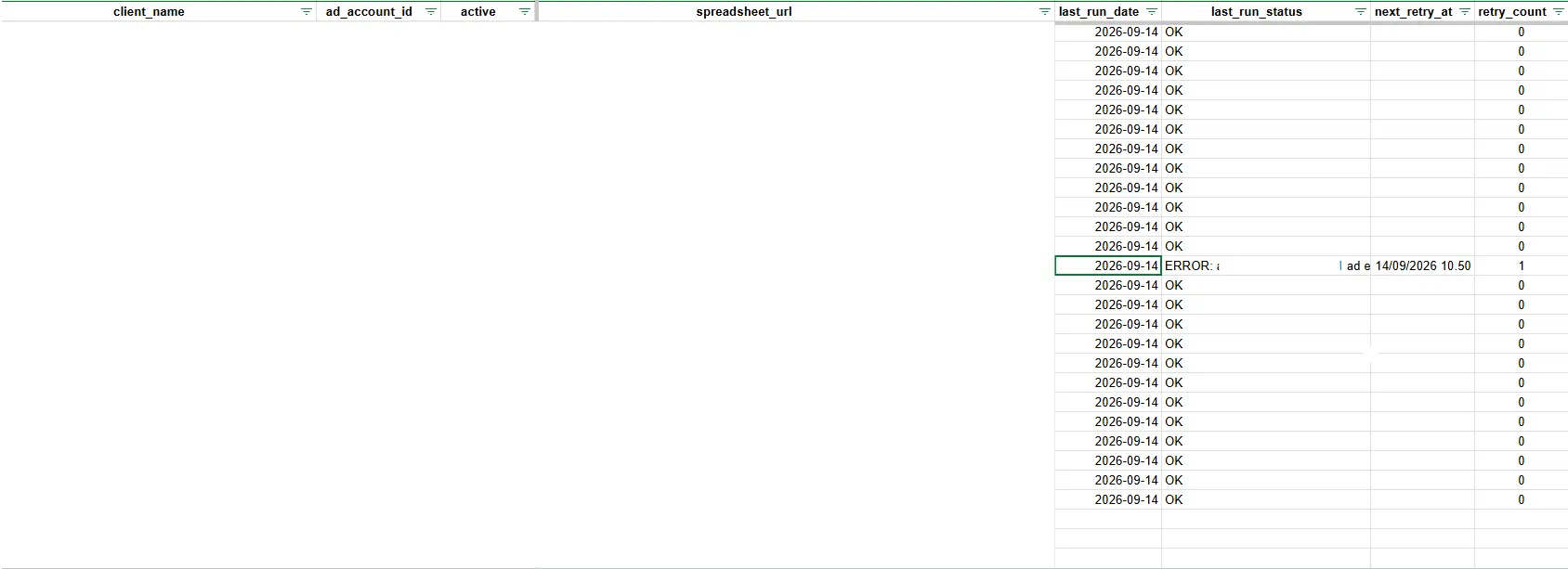
The master sheet acts as the operational dashboard for the entire reporting pipeline. Each client account is registered with its reporting destination and automation status.
Every run updates information such as the latest run date, current status, next retry time, and retry count. This makes it possible to monitor dozens of reporting processes from one place instead of opening every client spreadsheet individually.
7:00 AM
UTC+7
Every morning at 7:00 AM UTC+7, the automation reads the active accounts from the master sheet and begins processing them. For each account, the system retrieves the latest Meta Ads performance data and writes it into the corresponding client spreadsheet.
Scheduled runs collect the data before routine reporting, while the master sheet shows which pulls need attention. Each successful pull adds to the historical dataset.
Four Levels of Reporting
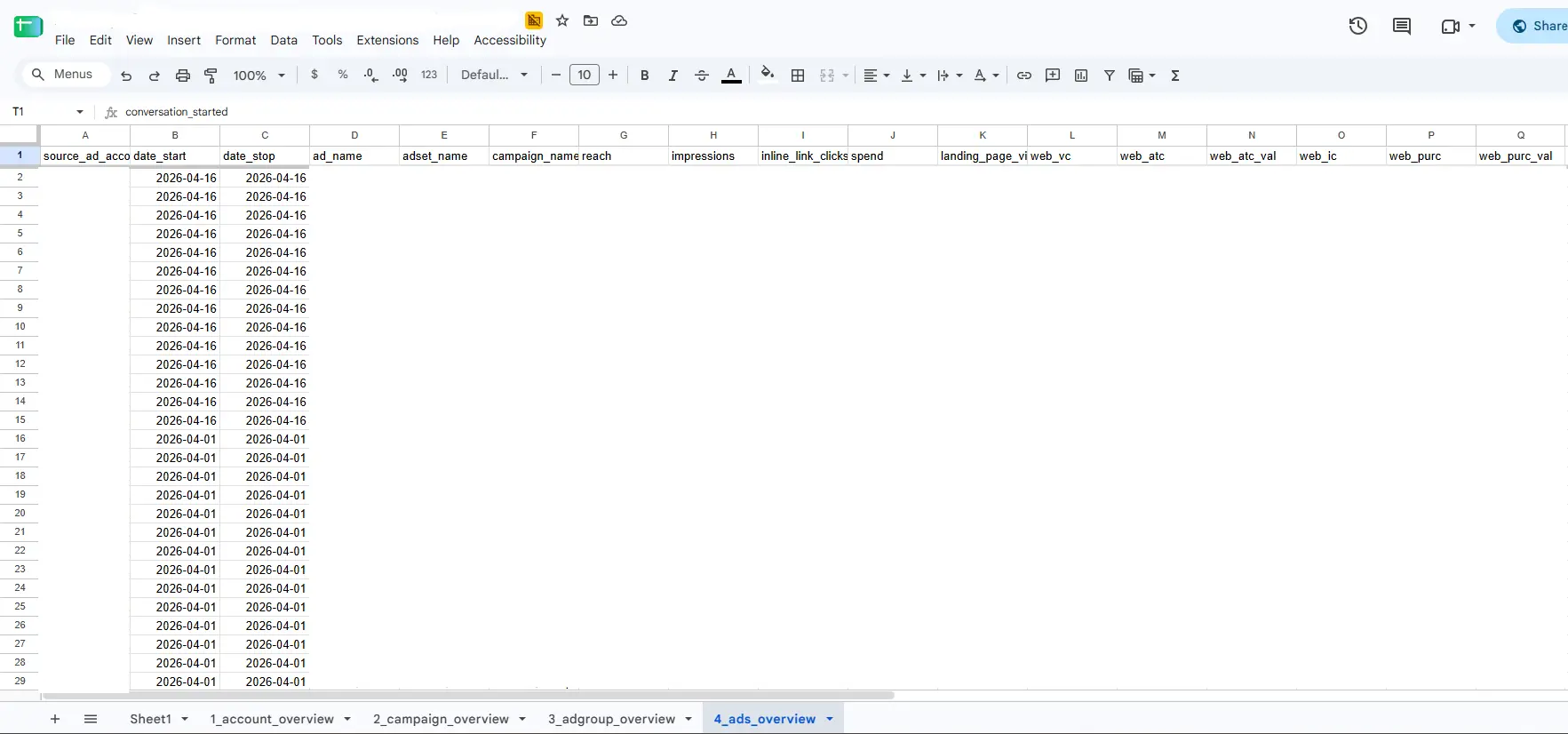
Each client spreadsheet follows the same reporting structure, giving both high-level visibility and the granularity needed for deeper campaign analysis.
Daily account totals provide an overview of performance.
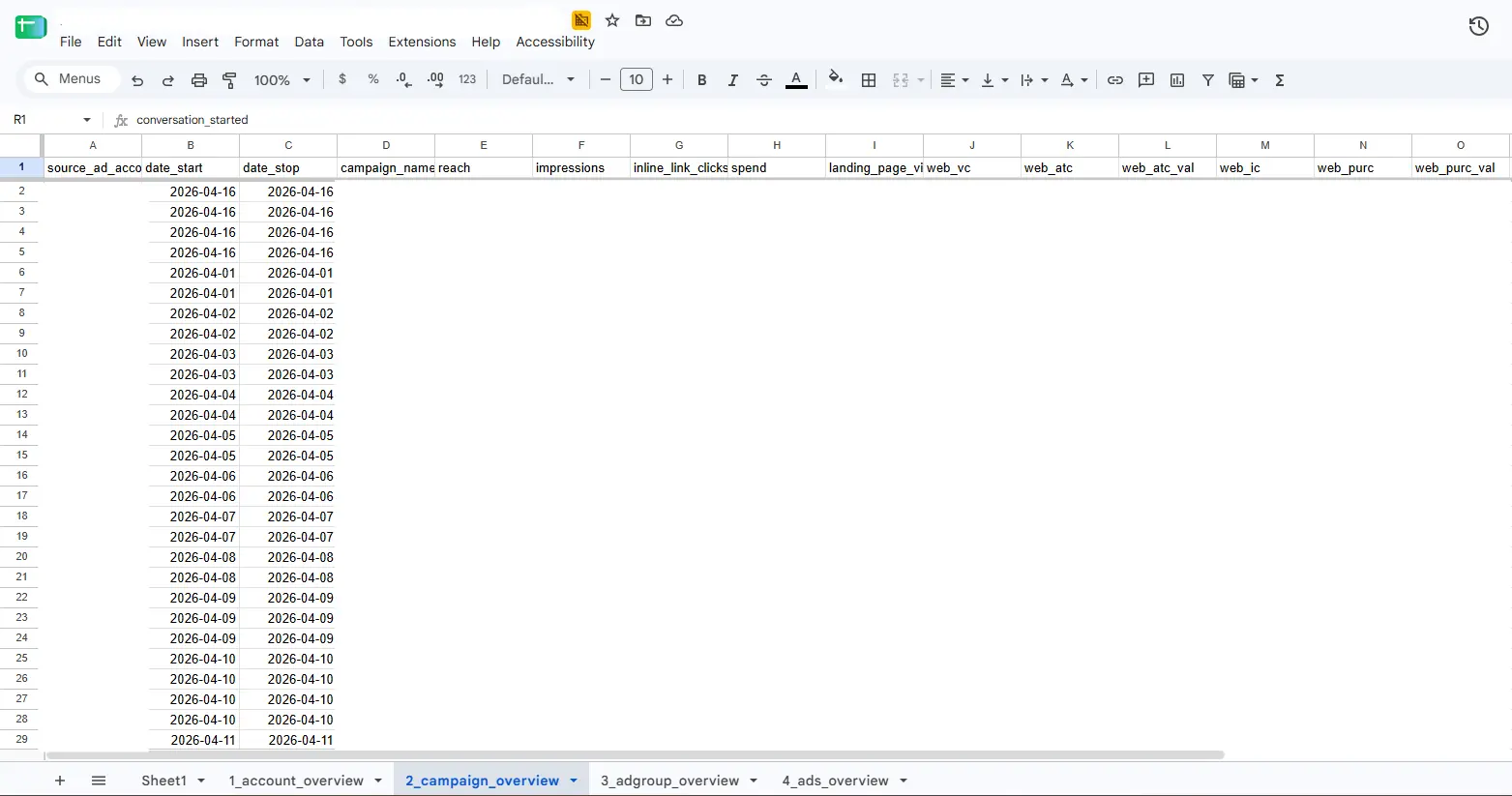
Campaign-level reporting makes it easier to compare initiatives, objectives, and performance across campaigns without manually rebuilding the dataset.
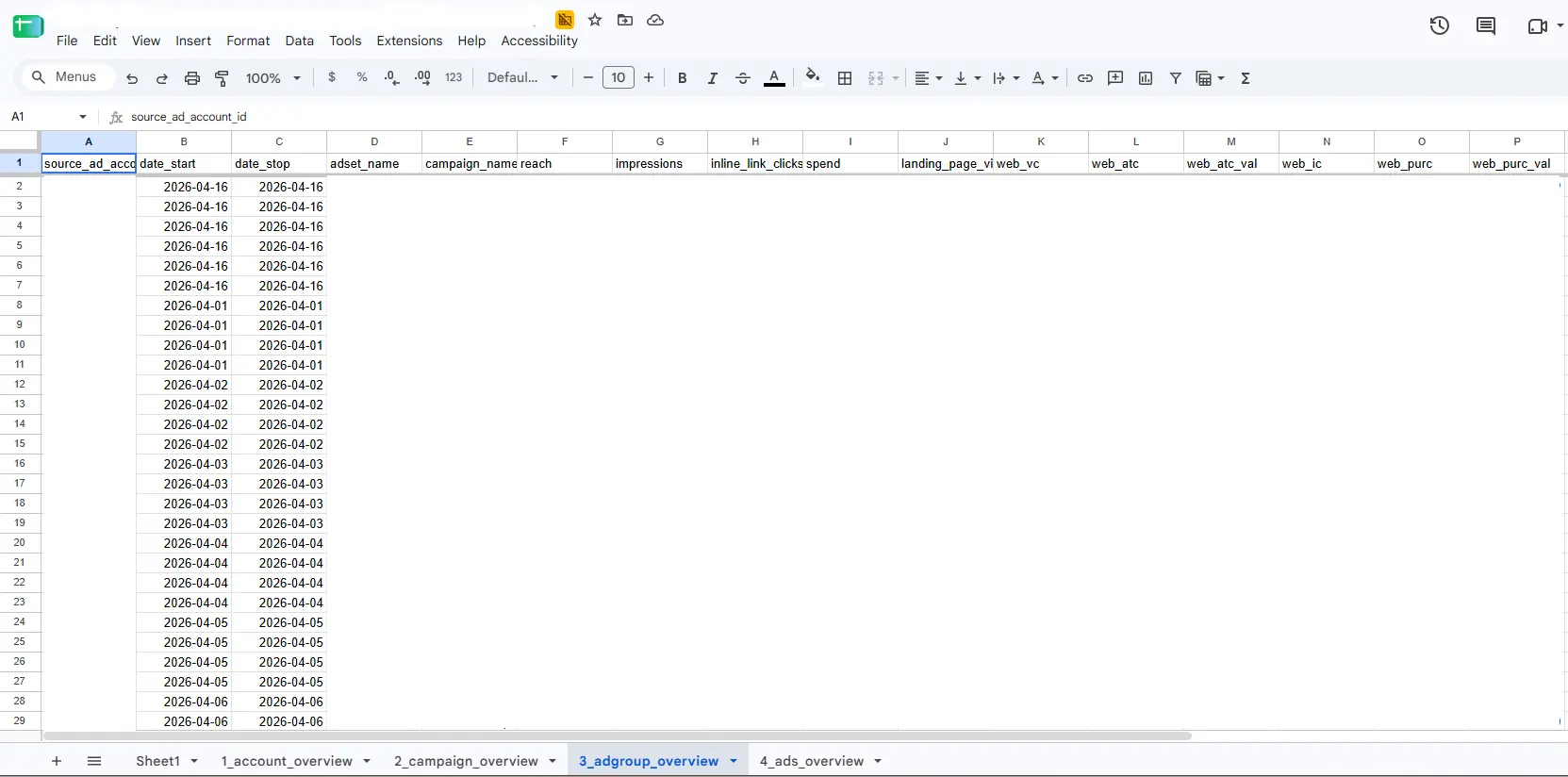
Ad set data supports comparisons between audiences and targeting setups.
The final layer captures individual ad performance, making it possible to evaluate specific ads and creatives using the same historical reporting structure.
Built to Recover
A scheduled process isn't truly useful if someone still has to watch it every morning. That's why I built failure handling directly into the reporting workflow.
If an account fails during processing, the system doesn't silently skip it or stop the entire reporting pipeline. Instead, the error is recorded in the master sheet and the affected account is automatically scheduled for another attempt one hour later. Successful accounts can continue normally while failed accounts enter their own retry cycle.
The Workflow
01
Daily automation starts
02
Master sheet determines what needs to run
03
Performance data retrieved automatically
04
Account → Campaign → Ad Set → Ad
05
Successful runs are recorded
06
Failed accounts retry one hour later
The Result
Scheduled collection replaces the recurring manual exports for the accounts included in the system. The team can check run status and use the historical data for reporting and analysis.
Daily
Runs every morning without starting the process manually.
4 Levels
Account, Campaign, Ad Set, and individual Ad data.
Auto-Retry
Failed data pulls are automatically queued for another attempt.
What This Changed
Before
Open Ads Manager → Select Account → Set Date → Export → Clean Data → Repeat
After
Check Run Status → Open the Report → Analyze
Tell me which recurring exports your team relies on. Scheduled collection can leave more of the reporting process for analysis.